Make your first letters
On mobile, use Customize / export for the controls and 3D preview to return to the model.
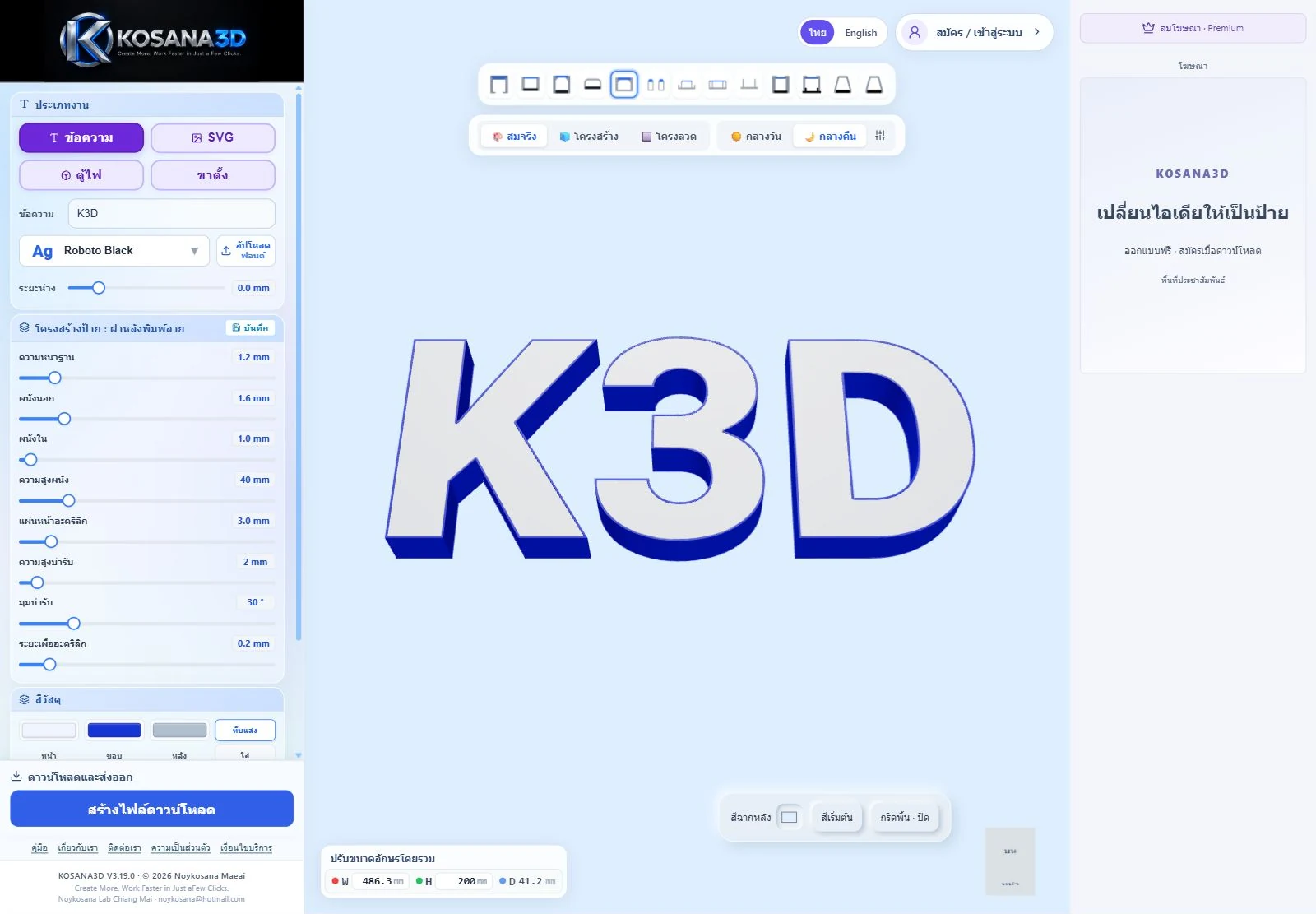
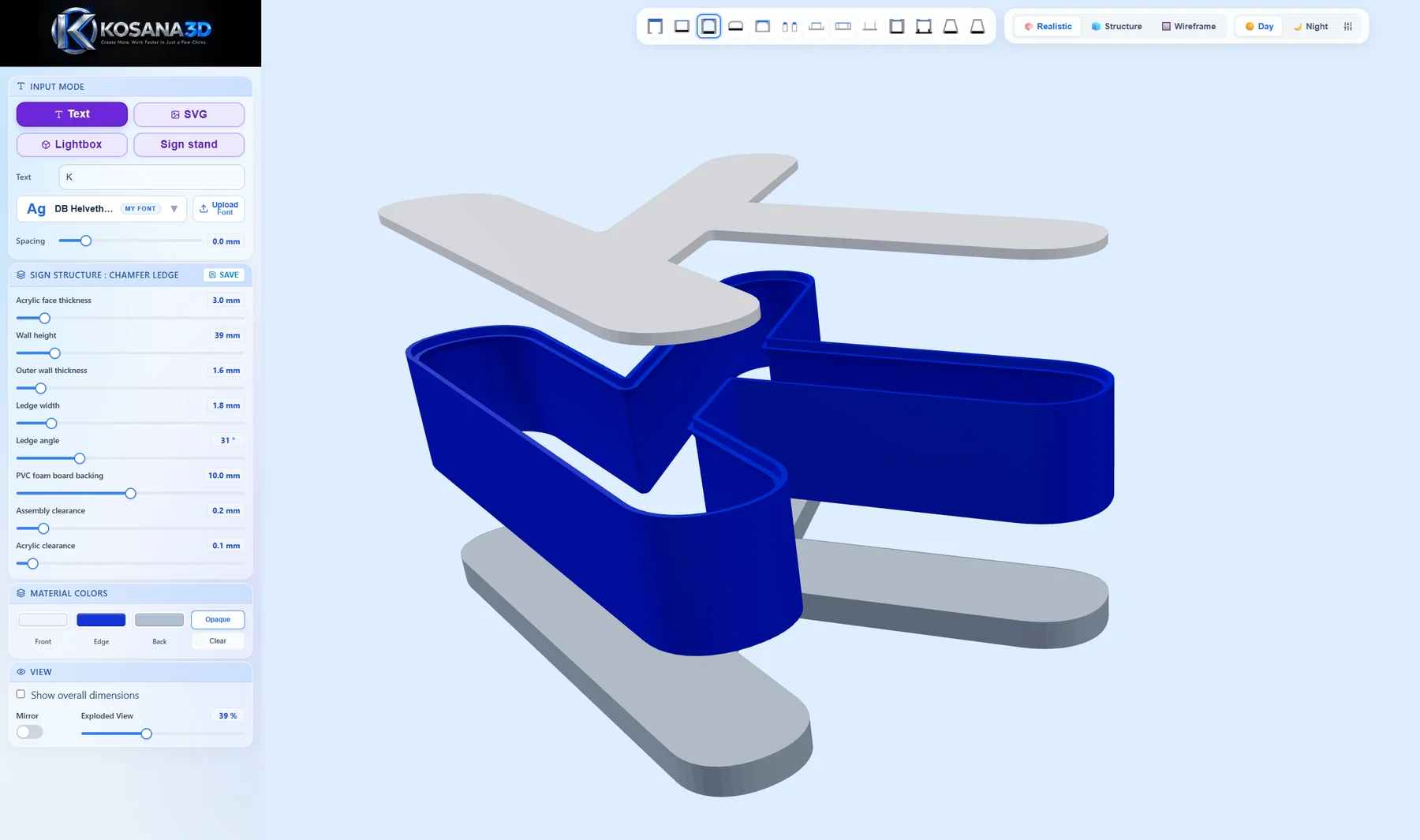
Choose Text and type K3D
Under Input Mode, choose Text and enter K3D in the text field. On mobile, open Customize / export to reach the controls.
What to checkAll three characters appear in the preview. If you try another writing system, choose a font that includes those characters.
Pick a font and the Printed Back profile
Click the font name below the text field to choose a font. In the profile strip above the preview, choose Printed Back for this example. On mobile, return to 3D preview and open Style / lighting if the strip is collapsed.
What to checkThe controls under Sign structure match the selected profile. Profile names describe the construction, so inspect its parts before choosing files.
Set an overall height of 100 mm
Under Units, select mm for this example. In Overall letter size, enter 100 in H, then press Enter or tap outside the field. This is a practice size, not a recommended production setting. Read the new W: width and height scale together. D displays the depth; change the relevant depth setting under Sign structure.
What to checkH is approximately 100 mm and W follows the proportions of the lettering. You can select cm, mm or in for display and input; changing the unit does not resize the design. Manufacturing exports remain in millimetres.
Inspect the preview from several angles
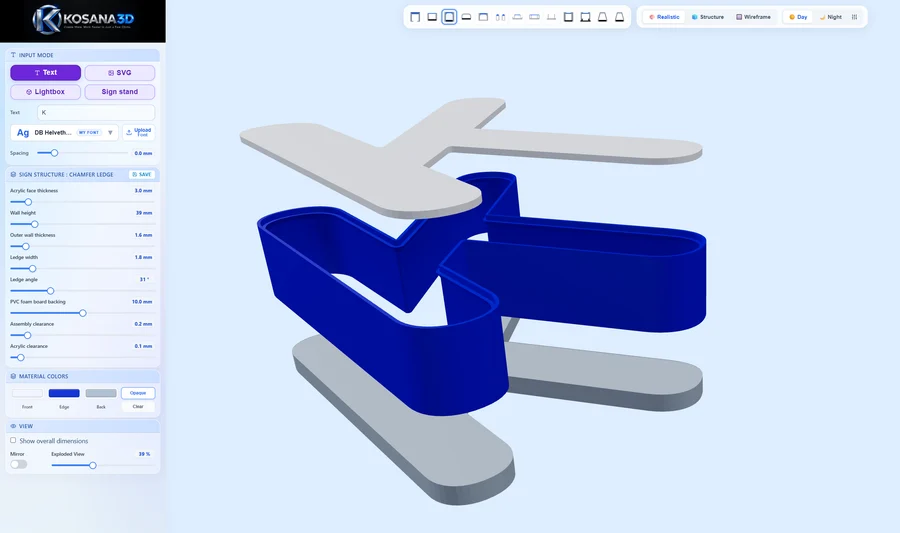
Drag the preview to rotate it. Check spelling, inner holes and separate parts. Switch to Structure to inspect the construction, then return to Realistic. After changing a thickness or depth, wait for the preview to rebuild and check it again.
What to checkThe intended parts and openings are visible, and the overall dimensions match your practice design.
Create the download, then choose a file
In the download area, click Create download. Wait for Files ready to download, then choose STL 3D PRINT. Sign in or create an account if prompted. For sheet parts, choose DXF ACRYLIC or DXF BACKING as appropriate for the selected construction.
What to checkYou have a file to inspect in a slicer or cutting/CAM application. Recreate the download after changing the design.
Bring in your own SVG artwork
- Keep a copy of your original artwork. In your vector editor, convert text to outlines and expand strokes into shapes when the stroke thickness is part of the design. Remove bitmap images and effects that do not define the part outlines.
- Export a clean .svg file. Under Input Mode, click SVG and choose it. Click SVG again to replace the file.
- Compare the preview with the original: outer contours, inner holes and separate shapes. Select cm, mm or in under Units, then check Overall letter size and adjust W or H in that unit.
- Choose the construction profile and recheck the geometry before creating a download.
SVG is the vector input for this workflow. DXF is an export format here; there is no DXF import. A PNG or JPG placed inside an SVG does not become a letter outline.
Choose the export for the job
Text / SVG: STL and DXF
After Create download, use STL 3D PRINT for printed geometry, DXF ACRYLIC for an acrylic face, or DXF BACKING for a backing sheet. Only choose a sheet part that belongs to your profile. Exported dimensions remain in millimetres regardless of the editor unit. Sign-in is required for downloads; these individual formats are available to free members.
Text / SVG: customer previews and ZIP
3D PREVIEW downloads an HTML preview and ALL LOAD .ZIP combines the letter files. Both require Premium access. Text / SVG has no separate PNG download button; use your device’s screenshot tool if you need a still image. Check the HTML on the recipient’s device before sending it, and attach the design dimensions and revision.
Lightbox / Sign stand: artwork and PNG
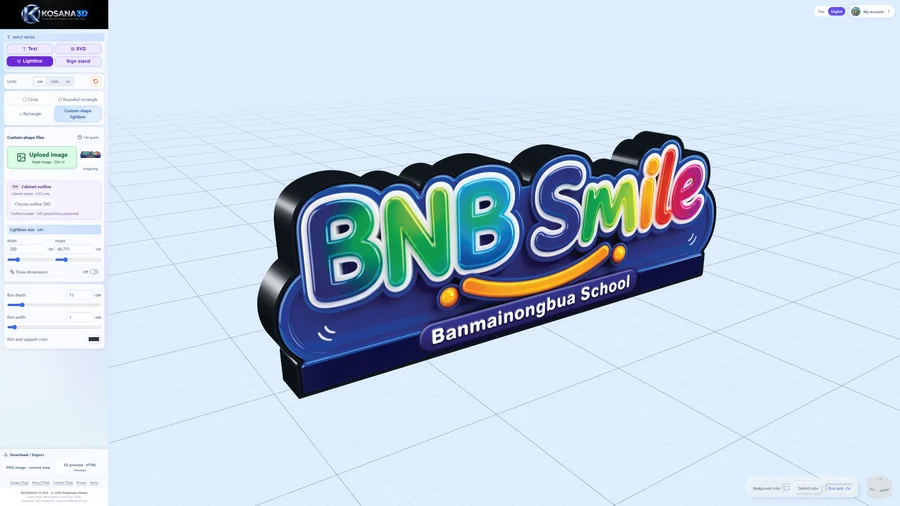
These modes place uploaded artwork on a sign face. Choose Lightbox or Sign stand, upload the artwork and check the sign dimensions. You can select cm, mm or in. Arrange the view, then use PNG image · current view after signing in. 3D preview · HTML requires Premium and an internet connection to open. Keep the original print artwork separately; the preview PNG is not a replacement for it.
Sign-in and the Premium trial
You can design without signing in. Sign in or create an account when the download flow asks you to. An eligible account can receive a one-time 10-day Premium trial when it first requests a Premium feature and the service confirms access. Read the expiry date in My account. There is no automatic charge when the trial ends. Read the Premium terms before buying access.
Keep your work and source files
Your latest work is saved in the browser on the device you used. Save beside Sign structure saves settings for the selected profile; it is not a cloud backup of the whole project. Signing in does not move your draft or uploaded fonts to another device.
- Return using the same website address, browser profile, device and account.
- Keep your original text, SVG, artwork and permitted font files separately, along with the chosen profile and important settings.
- Keep exports as well, but do not rely on STL or DXF to restore all editable design settings.
- Before clearing site data or changing devices, copy the source files and record the settings. Avoid editing the same job in several tabs at once.
If the result looks wrong
Some characters are missing or appear as boxes
Choose a font that contains the characters you need, or use the Upload control beside Font to add a permitted .ttf, .otf or .woff font. Check every character, including accents and detached marks, before setting up production. Uploaded fonts stay in that browser.
A hole or thin detail disappears
Record the profile, dimensions and setting you last changed. Reduce that wall or ledge setting one step at a time and wait for the preview to update. Compare with simple text or a single-shape SVG. If the preview is correct but the sliced result is not, check detail size and the slicer’s nozzle and wall settings.
The downloaded file has the wrong size
Check which unit was selected when you entered the editor dimensions. Manufacturing exports remain in millimetres even if you designed in cm or in. Recreate the download after editing, then compare the same dimension in the destination software using mm; 1 inch = 25.4 mm. Do not assume the destination application has selected the right units.
I cannot find the PNG option
PNG image · current view belongs to Lightbox and Sign stand. Text / SVG offers STL, DXF and HTML according to access, and does not have a separate PNG download button.
My previous work or font is missing
Check the website address, browser profile, device and account before changing anything. Do not clear site data as a first troubleshooting step. If the original font is missing, choose it again and recheck the dimensions before exporting.
Try it with your own artwork.
Need help? Email the developer with the step, browser, device, app version and a screenshot. Remove private customer details before sending.