Image F01Image placeholder
Show selected Illustrator artwork, the KOSANA3D panel and the imported browser result.
01
Start with your plugin
Send selected artwork or a document preview with its dimensions, then continue in the browser.
A browser tool for sign makers
Letters, lightboxes and sign stands, in your browser.
Bring artwork from your design software, then shape the details.
Design for free, without signing in. Sign in when you download.
See the possibilities
Bring work from your design software, then build letters, a lightbox or a sign stand.
Show selected Illustrator artwork, the KOSANA3D panel and the imported browser result.
Send selected artwork or a document preview with its dimensions, then continue in the browser.
Start with text or SVG, choose a structure and adjust the parts for your job.
Choose the shape, rim, depth and mounting style to review the overall design.
Place the artwork, choose a frame and adjust the supported panel, post and base dimensions.
Use previews to explain the design, then verify dimensions and materials before production.
Sign in to download. Available files depend on the job type, structure and membership.
Show the structure Save button beside customised profile settings.
Choose your language, keep useful settings and know where your latest draft is stored.
Editor images show design previews. Reserved image spaces will be filled with more examples.
KOSANA3D / 01
Send selected artwork or a document preview with its dimensions, then continue in the browser.
Show selected Illustrator artwork, the KOSANA3D panel and the imported browser result.
Send selected artwork as vectors for letters, or as an image for lightboxes and stands, with its original dimensions.
Plugins and installation ↗Show the Photoshop lightbox send panel and the same artwork on a lightbox.
Send the visible document image to a lightbox or stand. Sign dimensions are calculated from the document resolution.
Show selected CorelDRAW artwork and the KOSANA3D transfer page.
Select artwork and run the letter, lightbox or stand macro, then confirm the transfer on the handoff page.
Show the replace-draft prompt and the imported design with its dimensions.
The browser receives the artwork and size, asks before replacing an existing draft, and lets you continue adjusting the design.
KOSANA3D / 02
Start with text or SVG, choose a structure and adjust the parts for your job.
 Enlarge image ⤢
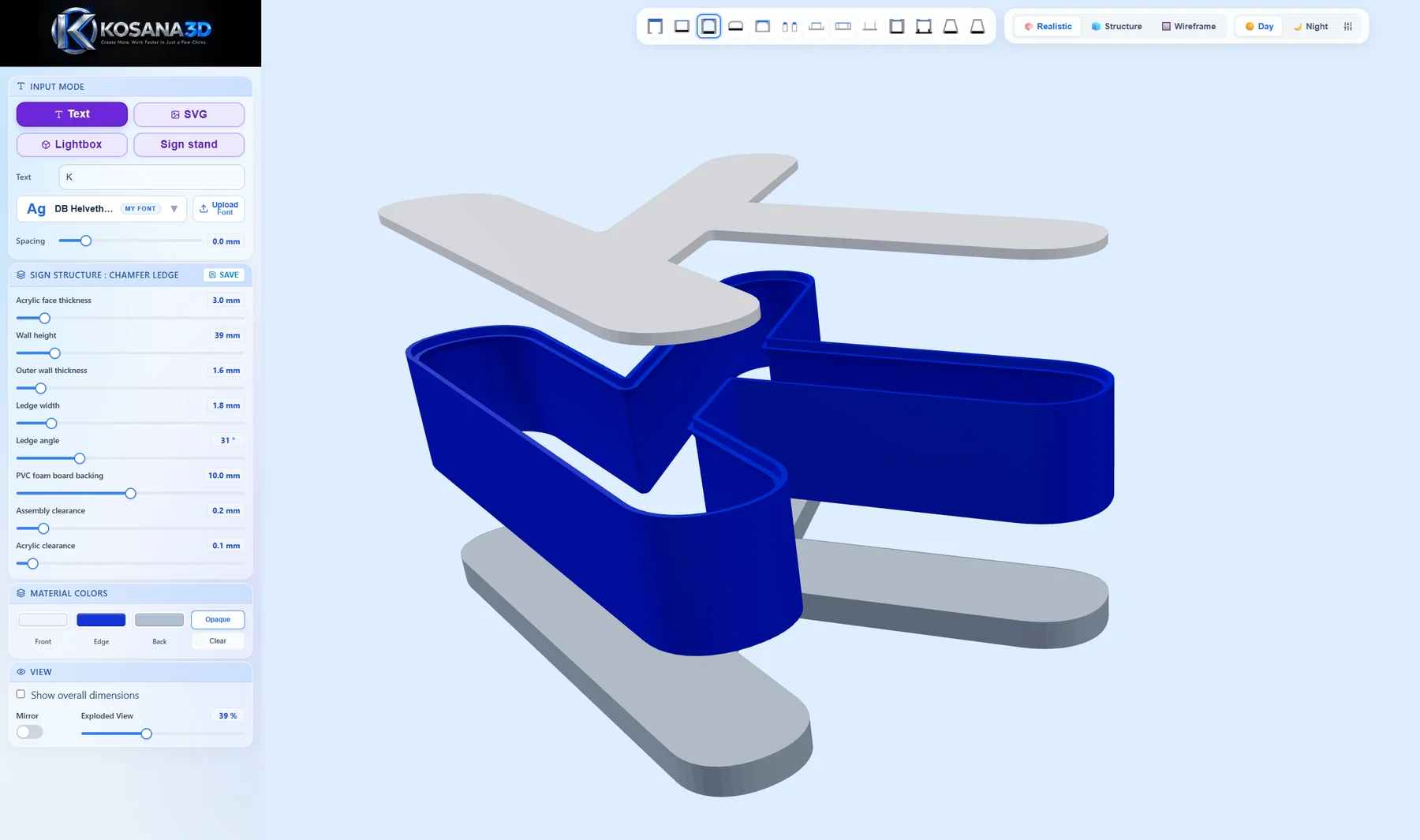
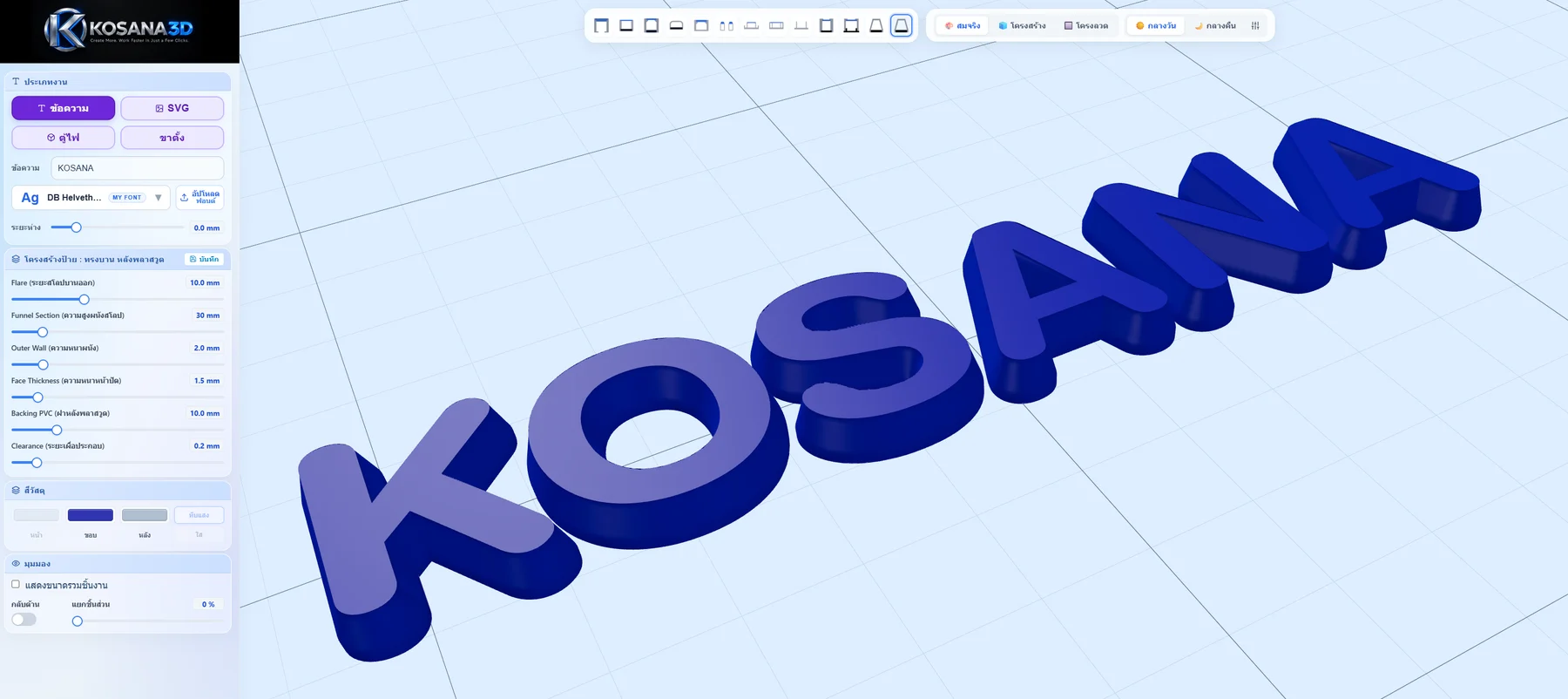
Change the text, choose a font and adjust spacing while viewing the letter shapes.
 Enlarge image ⤢
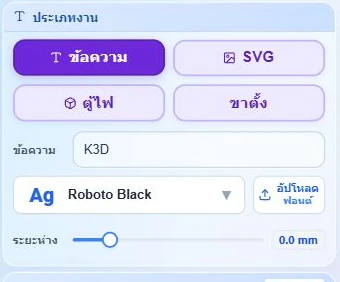
Choose a listed font or upload a font you are licensed to use, then check the lettering.
Show an SVG logo next to the 3D model made from the same artwork.
Use a vector logo or shape as the starting outline, then choose its structure and dimensions.
Show the mm / cm / in selector and letter width, height and depth.
Use mm, cm or inches for letter dimensions. Production geometry and exports remain in millimetres.
Show the profile picker beside solid-face, acrylic-face and plug-back examples.
Compare the structure thumbnails, choose a design and adjust its details to suit your workshop.
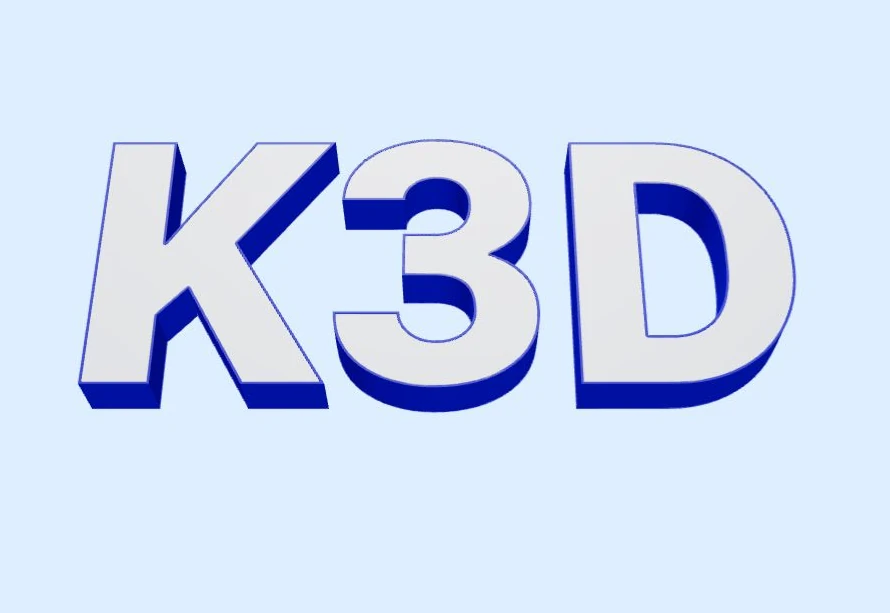 Enlarge image ⤢
Choose a ledge, front lip or backing arrangement, then adjust the settings available for that structure.
Show a solid face, sloped profile and separate printed backing side by side.
Explore solid faces, sloped profiles and separate printed backs to suit the letter you want to make.
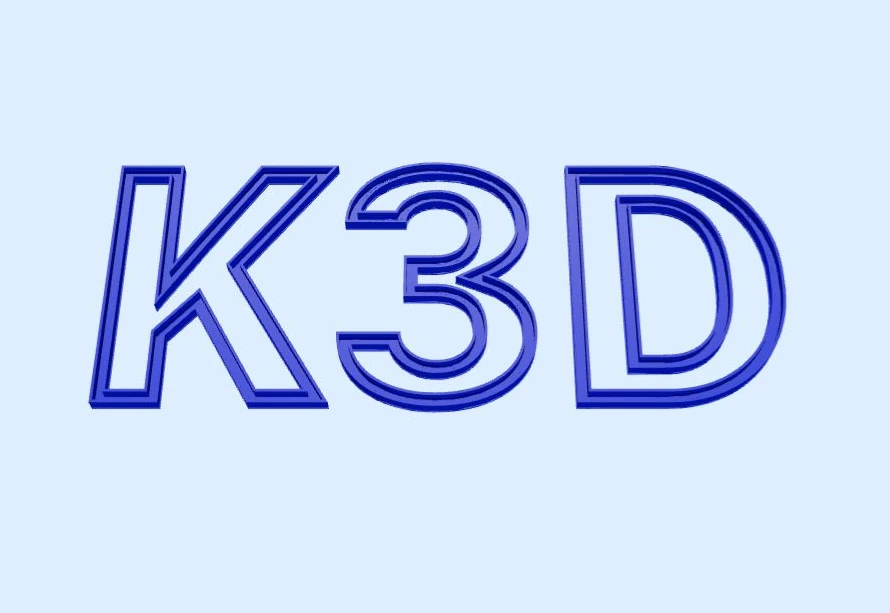 Enlarge image ⤢
Choose a neon profile and adjust its available channel and wall settings.
Show a close-up of the face seat with thickness and clearance controls.
Adjust the part settings, then test the fit with your own material and machine.
KOSANA3D / 03
Choose the shape, rim, depth and mounting style to review the overall design.
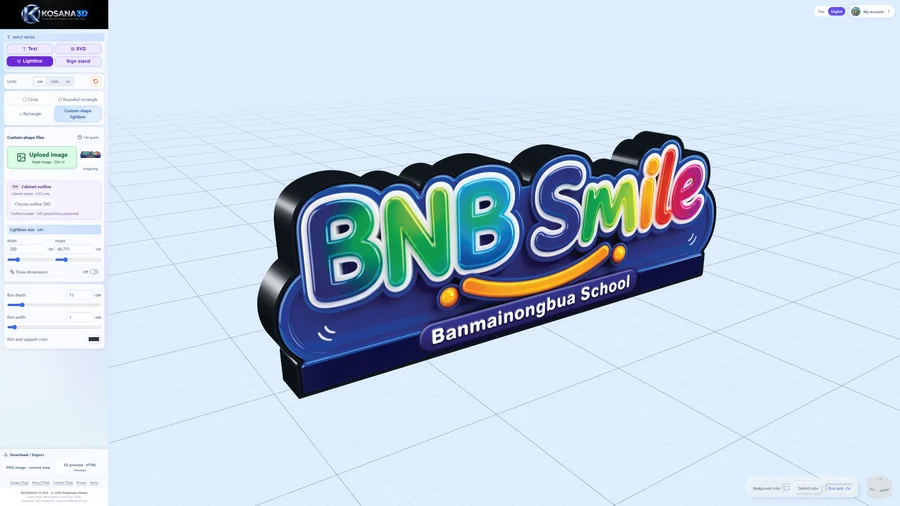
Show the artwork upload area and the same image on a lightbox.
Use a PNG, JPG or WebP image for the sign face, then check its proportions and the box dimensions.
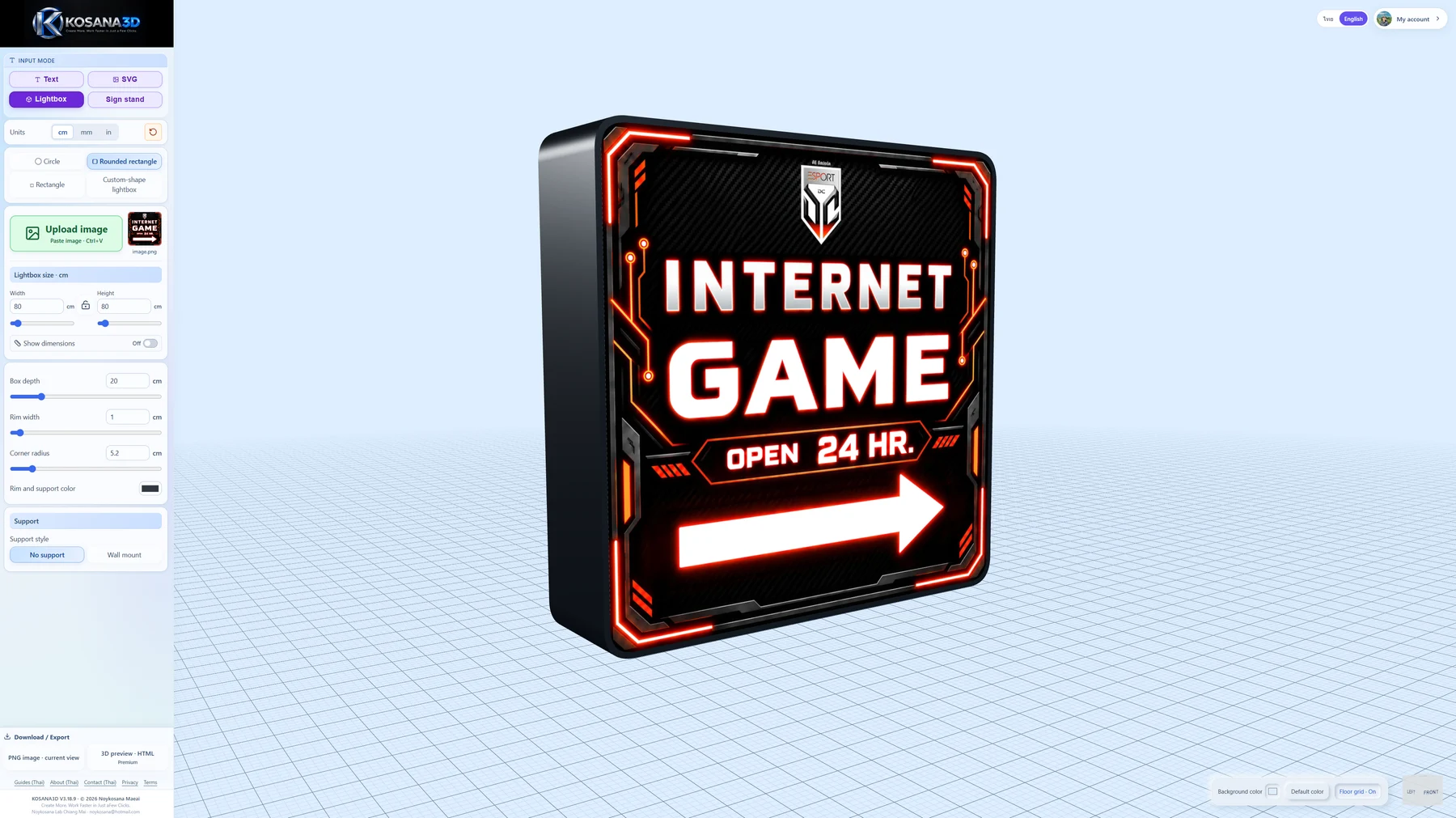 Enlarge image ⤢
Adjust corner radius, depth and rim width around your artwork.
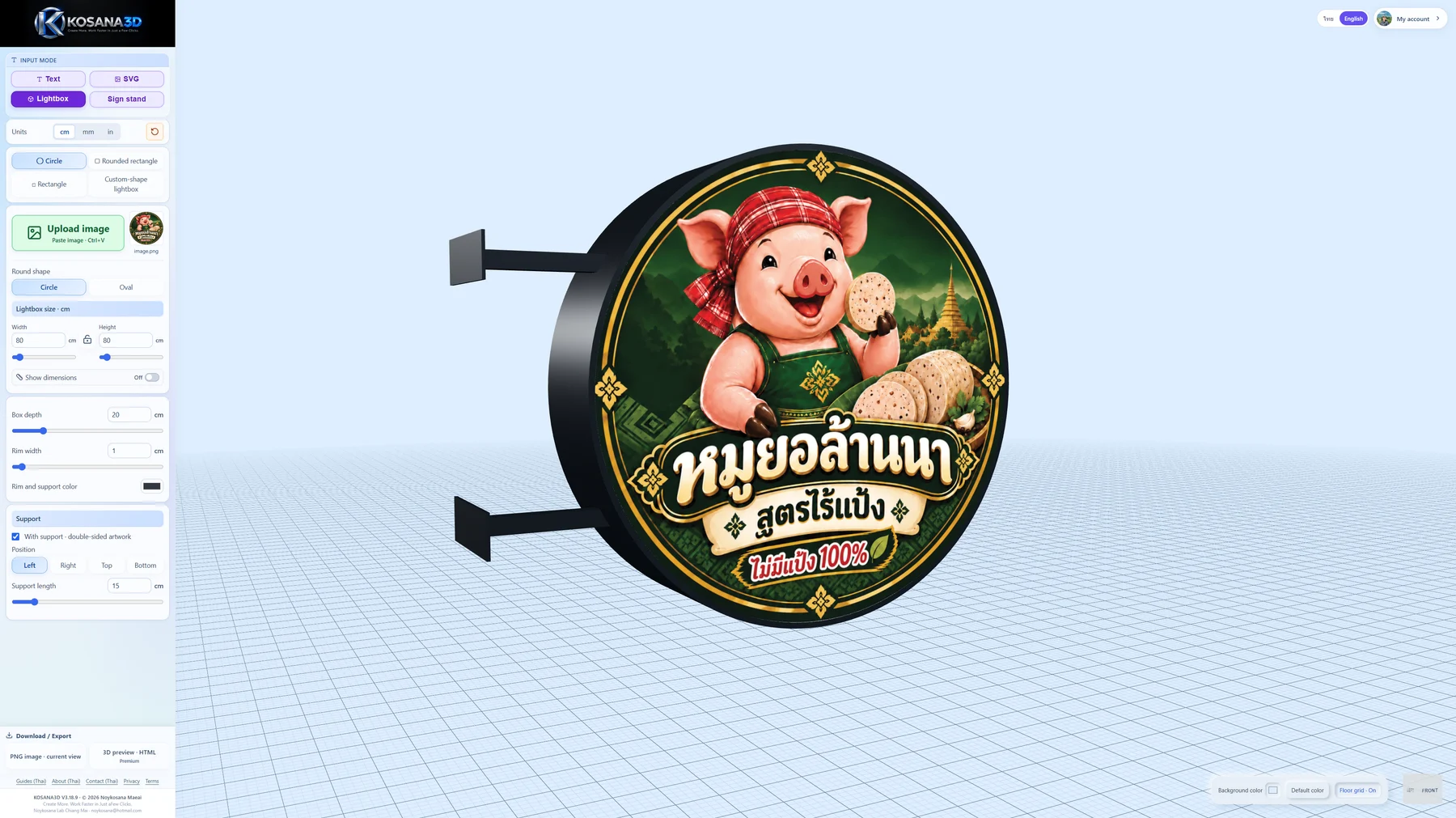 Enlarge image ⤢
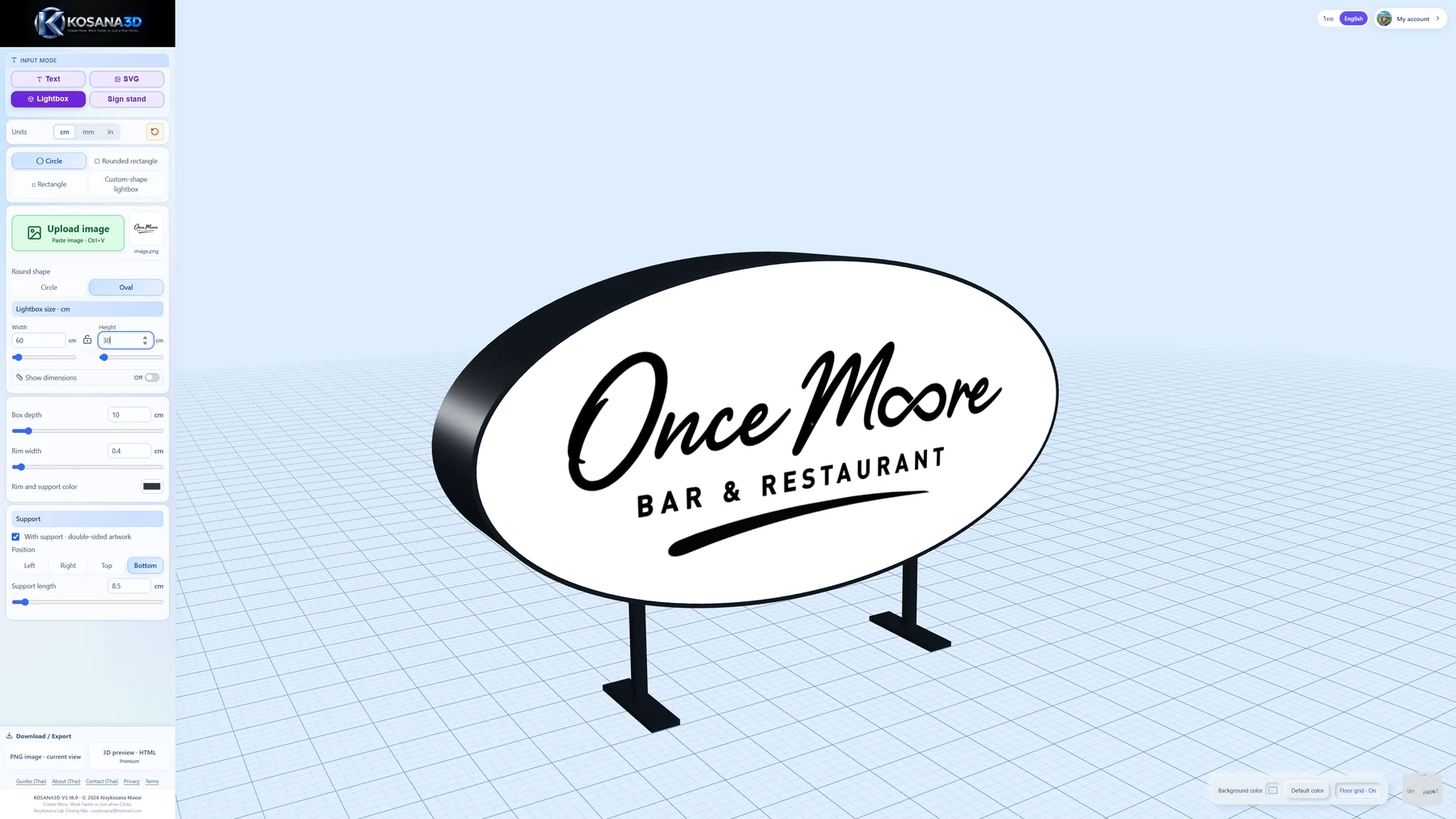
Choose a circular face and adjust the mounting-arm position and length.
 Enlarge image ⤢
Use an oval based on the artwork proportions and inspect its size and mounting position.
 Enlarge image ⤢
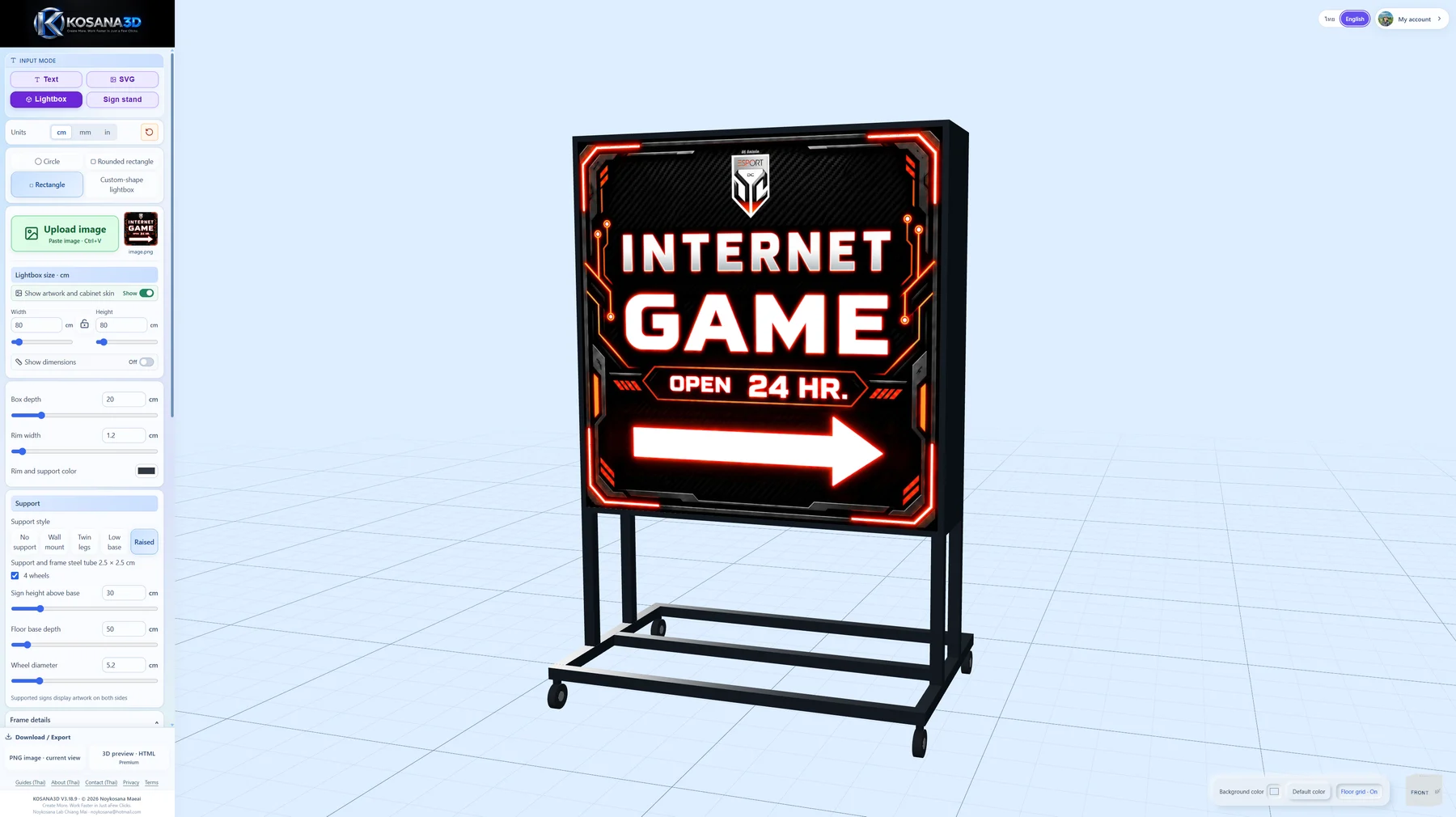
For rectangular lightboxes, choose a supported floor base, adjust its height and add wheels.
 Enlarge image ⤢
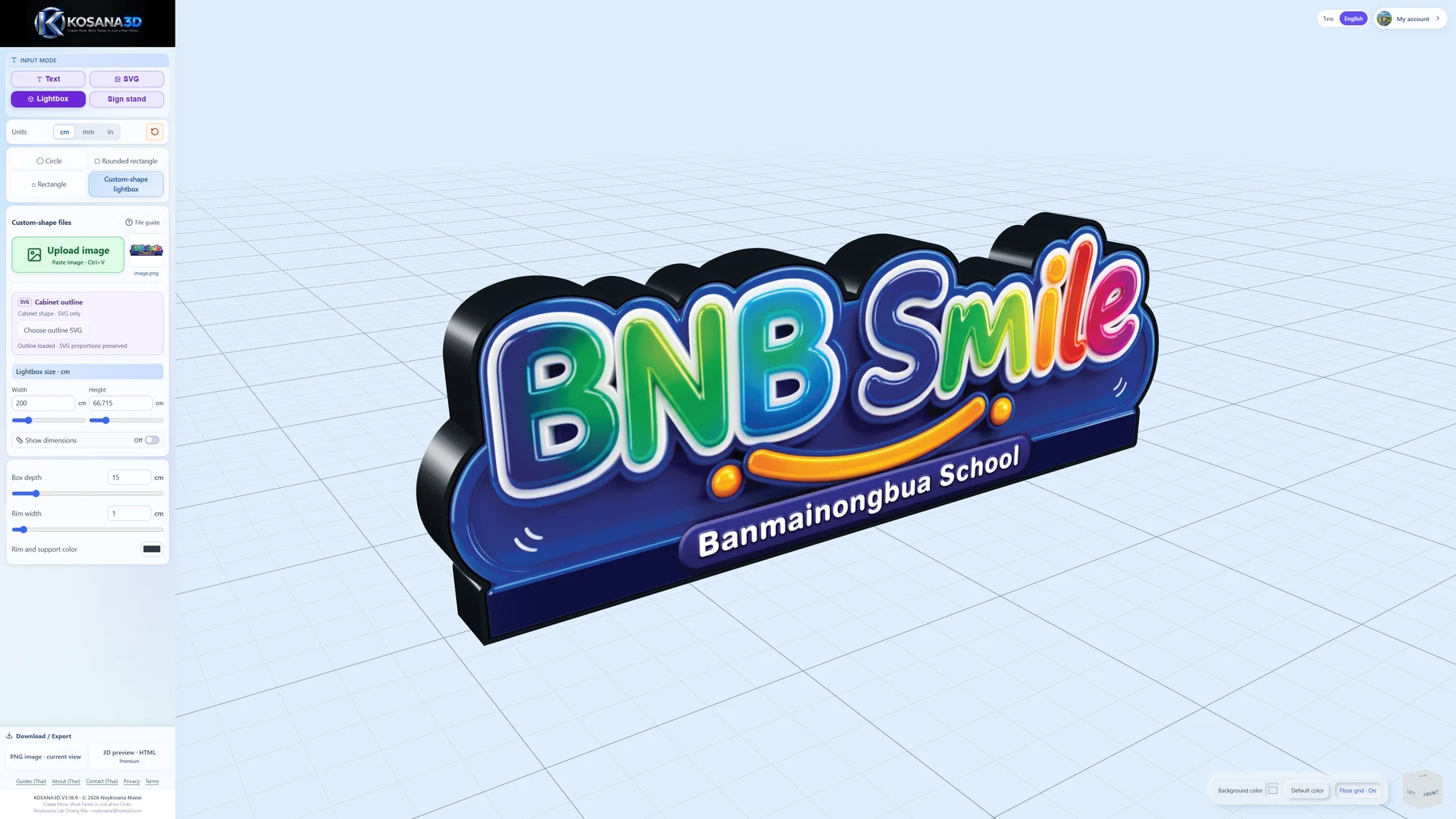
Define the box with one closed SVG outline, then upload its face artwork separately.
 Enlarge image ⤢
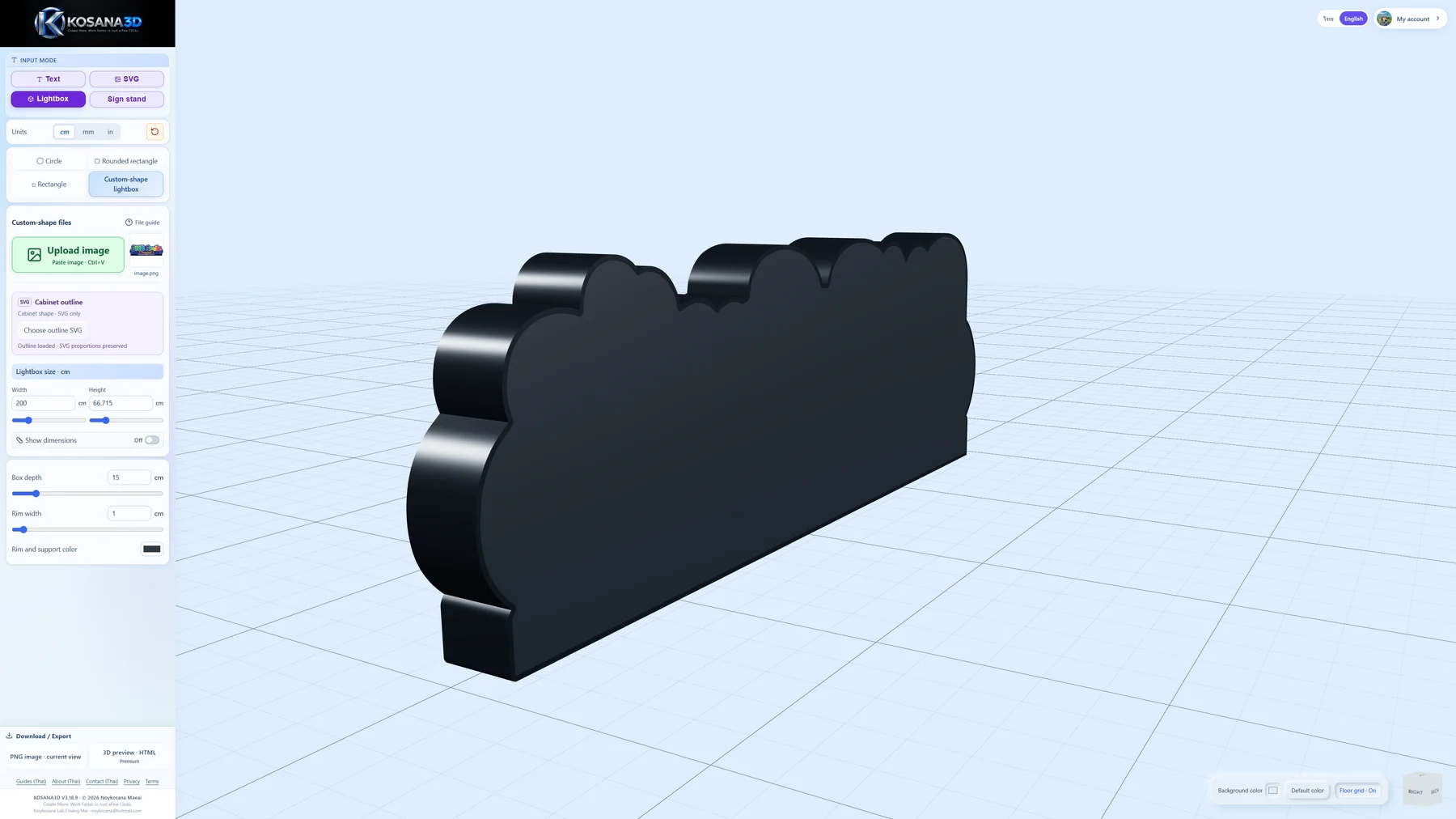
Rotate the custom lightbox to inspect its depth and outline before sharing the preview.
Show the rectangular box edge braces and their count controls.
Adjust the supported edge braces between the front and back frames, then review the connections.
KOSANA3D / 04
Place the artwork, choose a frame and adjust the supported panel, post and base dimensions.
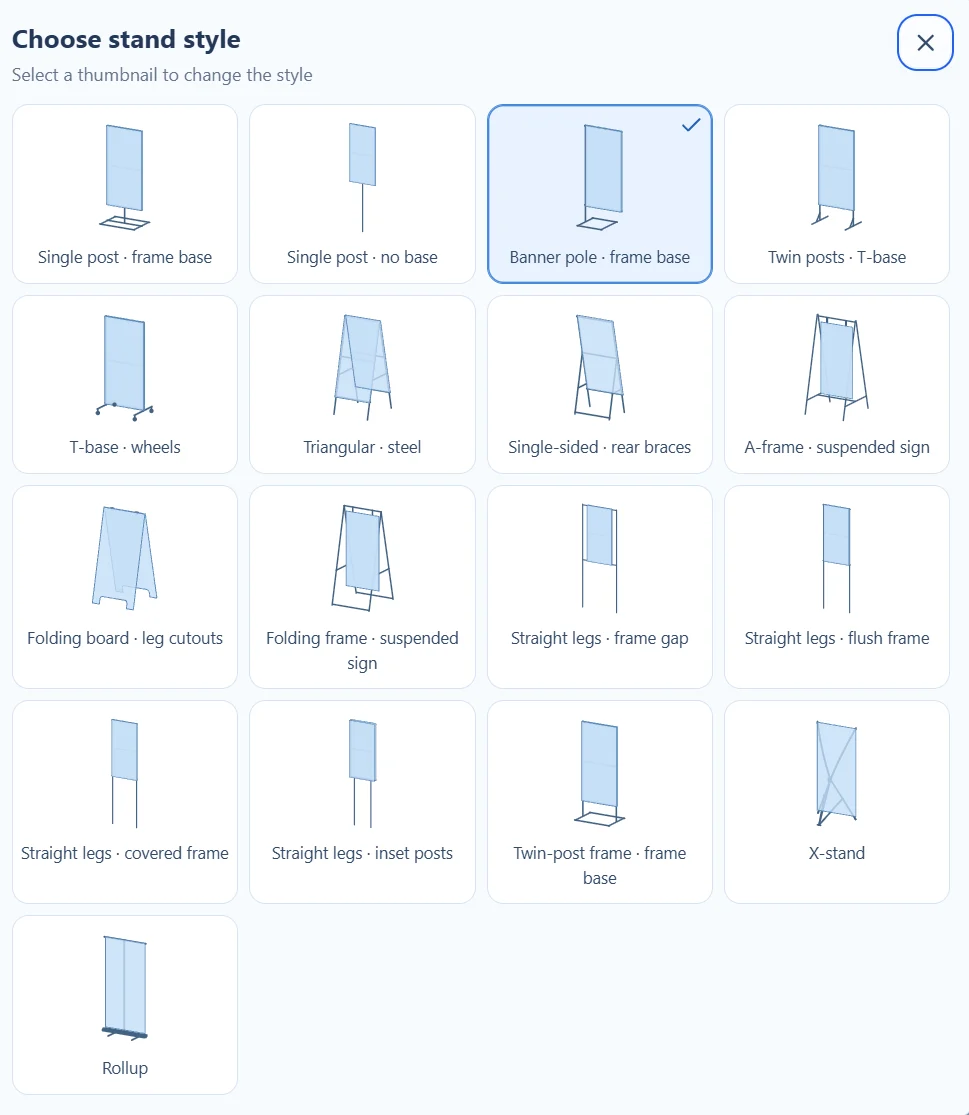 Enlarge image ⤢
Compare the illustrated stand options, then adjust the selected design.
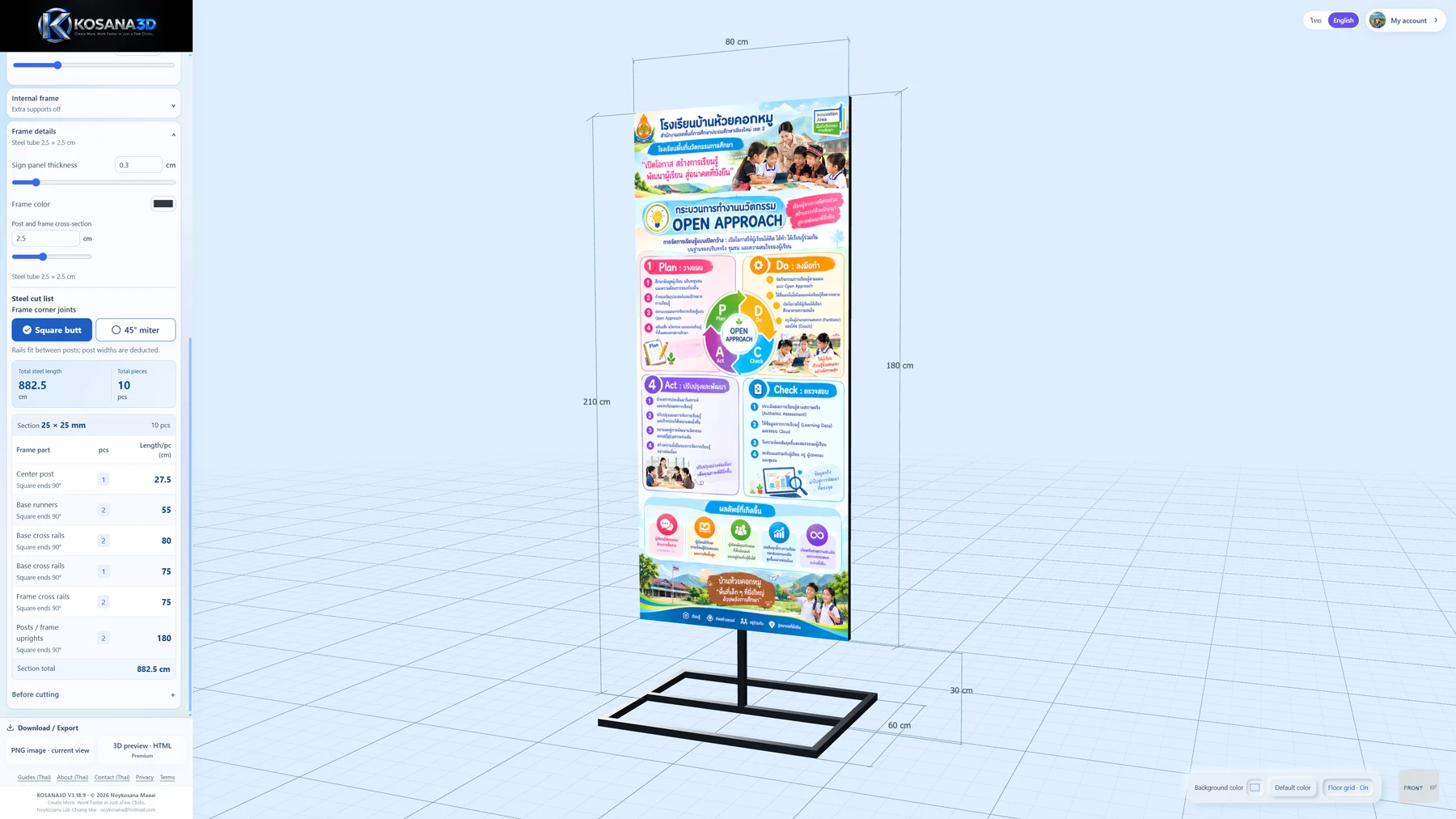 Enlarge image ⤢
Place the sign on a centre post and compare the panel, post and base proportions.
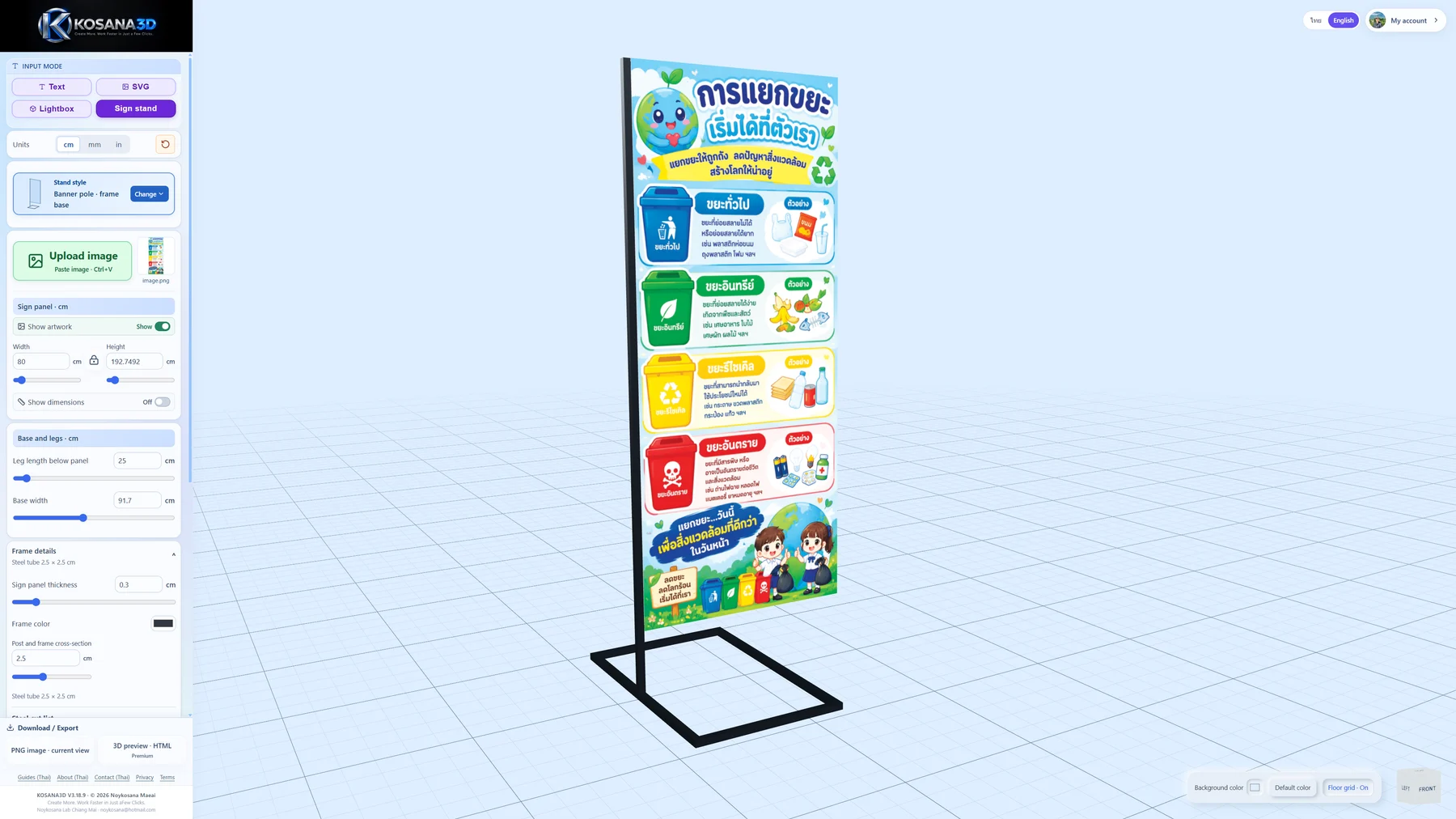 Enlarge image ⤢
Place vertical artwork and review the sign height and base footprint.
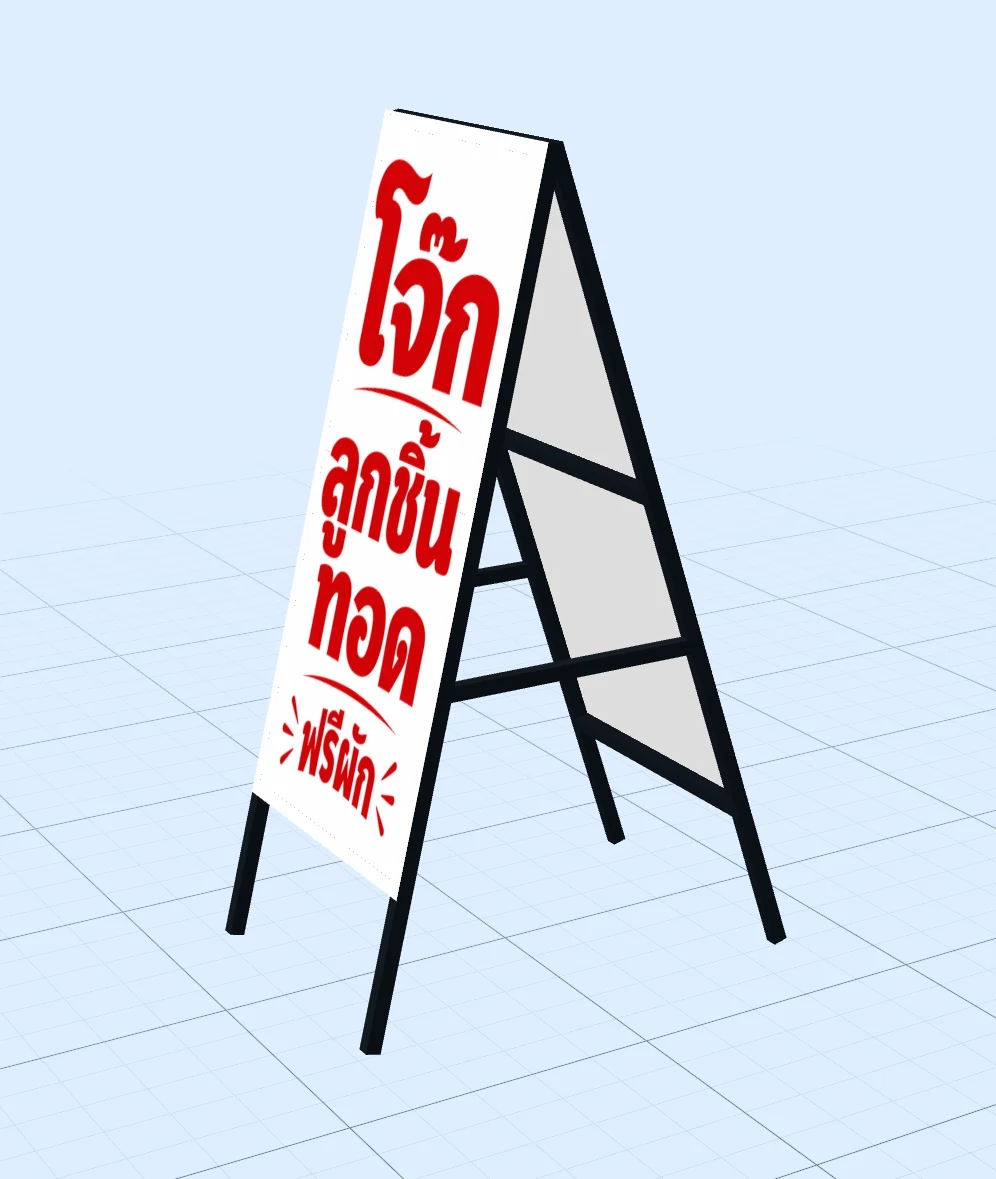 Enlarge image ⤢
Choose a supported folding style and adjust the spread angle to inspect its panel, legs and rails.
Show a wheeled T-base with leg-clearance and base-depth controls.
Adjust the available floor clearance, base depth or wheel size and review the overall footprint.
Show an X-stand and rollup side by side with the available size presets.
Choose an available preset size and place your artwork to review the proportions.
Hide the sign face to show the braces beside tube-size and brace-count controls.
Choose a tube section or custom size, then use automatic or manual bracing where supported.
KOSANA3D / 05
Use previews to explain the design, then verify dimensions and materials before production.
 Enlarge image ⤢
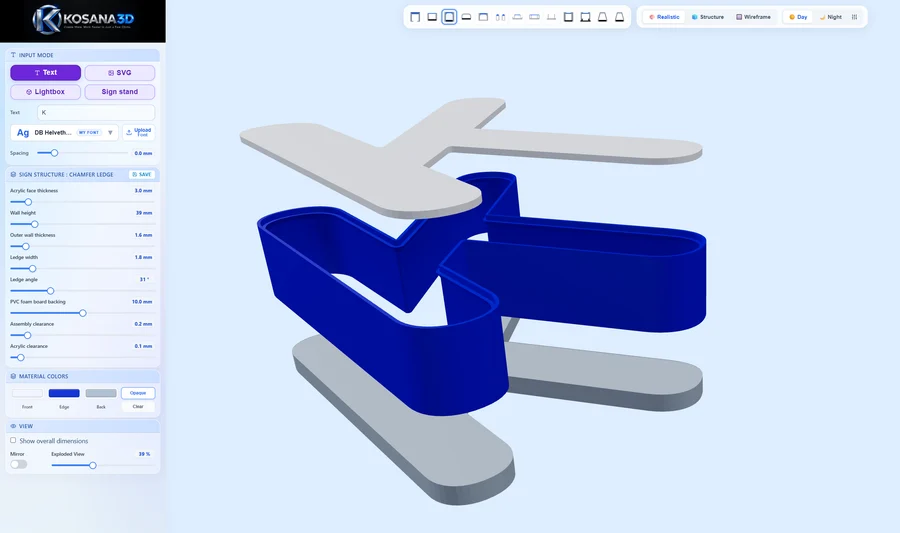
Switch between Realistic, Structure and Wireframe to inspect the letter geometry.
Show front, side and top views with the view cube visible.
Rotate and zoom with the mouse, or use the view cube to inspect the front, side and top.
Enlarge image ⤢Separate the face, body and backing to see how the letter parts fit together.
Show letters with different face, wall and backing colours beside the colour controls.
Change the available face, wall and backing colours, with clear acrylic on supported structures.
Show the same letter view under two lighting settings with the lighting menu.
Adjust ambient light, direction and intensity for a clear view of the letter design.
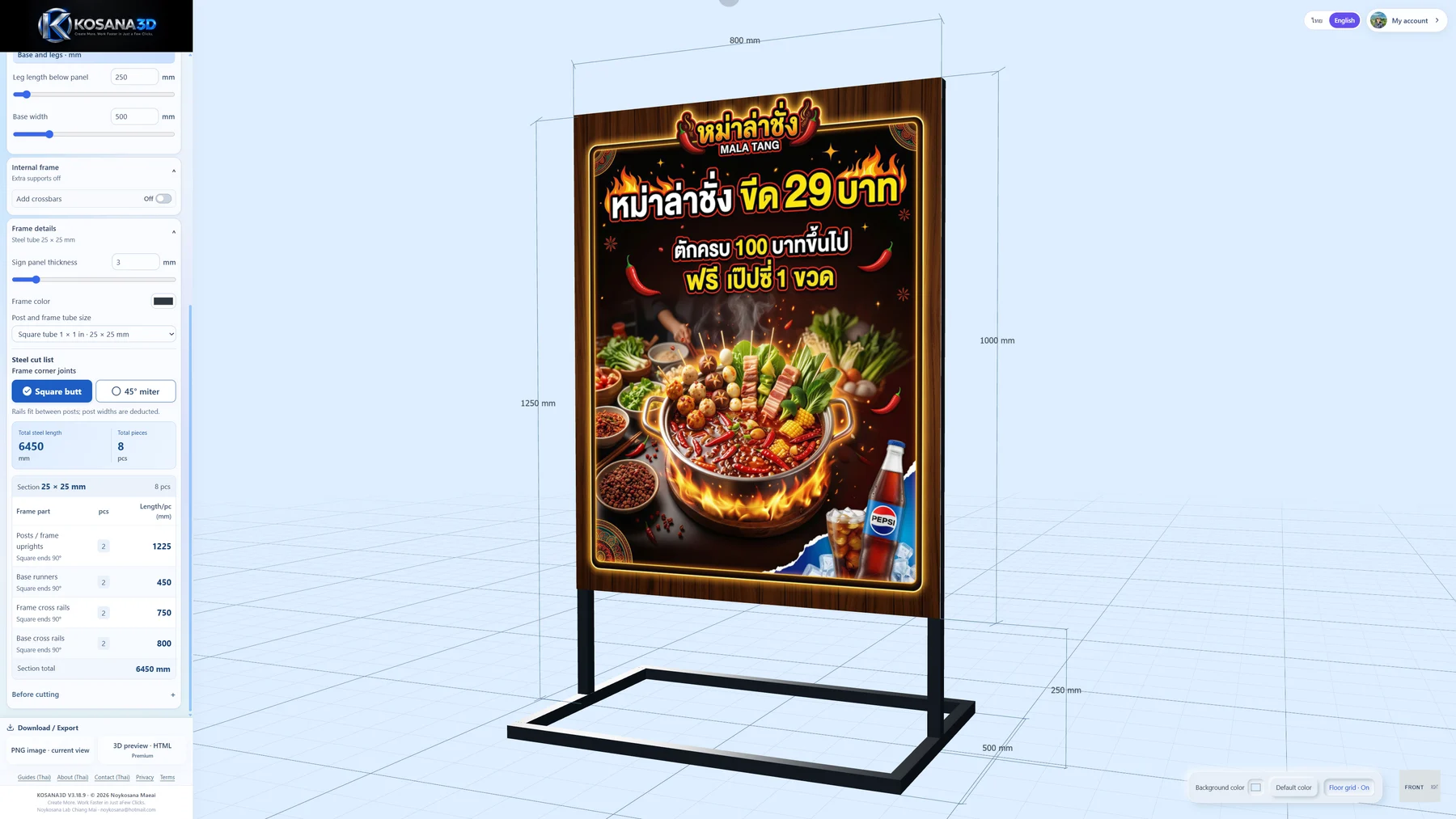 Enlarge image ⤢
Read dimensions on the preview. For stands, distinguish panel height from the full assembled height.
Show the lettering before and after Mirror, with its toggle visible.
Use Mirror to reverse the lettering and check the intended orientation before generating files.
Show the model on two backgrounds with the grid visibility control.
Choose a background that makes the parts easy to see, and show or hide the grid.
KOSANA3D / 06
Sign in to download. Available files depend on the job type, structure and membership.
Show the STL download option and the same part opened in a slicer.
Download the printable parts of a text or SVG letter job and inspect them in your slicer.
Show the face and backing DXF outlines with a reference dimension.
Get acrylic-face or backing outlines for supported letter structures, then verify the size in your cutting software.
Show the lightbox PNG button and its saved preview image.
Save PNG previews of lightboxes and stands after signing in. For letters, use your device’s screenshot tool.
Show an exported HTML preview open in a recipient’s browser.
Export an HTML file for the recipient to inspect in a browser. Test the file before sharing.
Show the ZIP download option and the file list inside an example archive.
Download the supported files for a letter design together for easier storage and handoff.
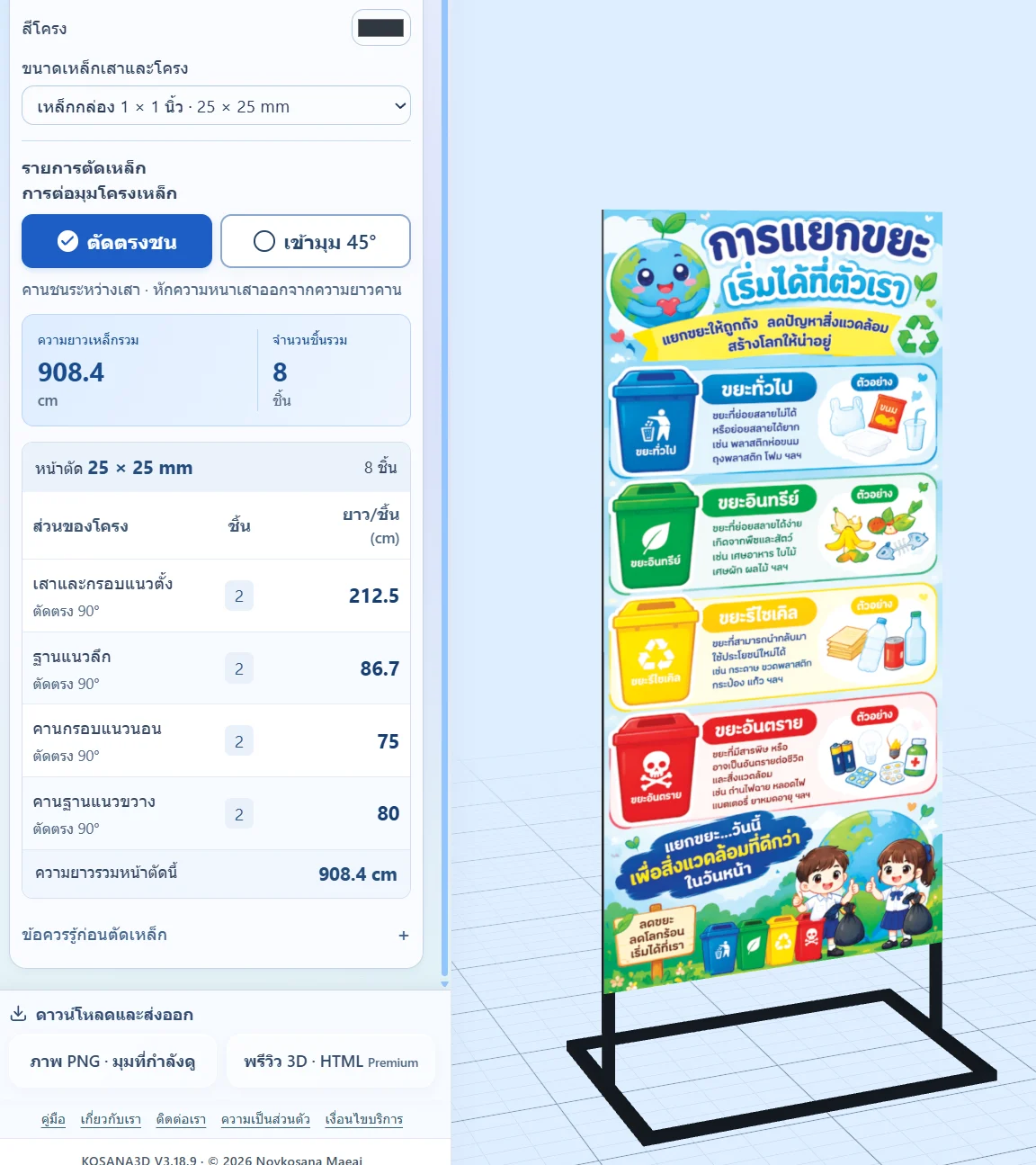 Enlarge image ⤢
Review section sizes, quantities and lengths for supported frames, with butt or 45° joints. Verify on site before cutting.
KOSANA3D / 07
Choose your language, keep useful settings and know where your latest draft is stored.
Show the structure Save button beside customised profile settings.
Save the selected letter profile settings on your device so you can reuse your own values.
Show the latest design restored after reopening the same browser.
Your latest draft and fonts stay in this browser, without cross-device sync. Keep originals and important settings separately.
Show the same controls in Thai and English with the language switch.
Choose the editor language for the person using it without changing the sign’s own text.
Start with a short word
Use the English guide alongside the editor.
Type a short word and select a font, or import your vector artwork. Check the outline and any holes inside the letters.
Choose a profile, select cm, mm or inches and adjust the part settings. View the front, sides and back.
Generate the downloads, sign in and choose the files you need. Open them in your slicer or cutting software to verify size and parts.
Know what you will get
Letter parts and image-based sign previews have different outputs.
STL files for preparing 3D prints, and DXF profiles for sheet cutting, according to the selected structure.
Free members can download these files. Premium adds a combined ZIP and a downloadable 3D preview in HTML.
For a still image of a letter design, use your device’s screenshot tool.
Place artwork on a lightbox or sign stand, then adjust its size and appearance. Members can save a PNG of the current view.
Premium adds a downloadable HTML preview and steel cut lists for supported designs. These modes do not export STL or DXF.
PNG and HTML previews are for reviewing the design; keep your original artwork for printing.
Before making the full sign, verify the exported dimensions and parts in your production software. Test fit with the material and machine you plan to use.
Free and Premium
Premium is a one-time purchase for 30 days. There is no automatic renewal.
Open the editor, enter your artwork, change the dimensions and inspect the 3D model without signing in.
Open the editorSign in to download STL and DXF for letter jobs, or PNG previews for lightboxes and sign stands.
See the first-sign guideCombined ZIP for letters, downloadable 3D HTML previews, steel cut lists for supported designs and an ad-free experience.
View Premium in the editorEligible accounts can try Premium free for 10 days, once per account. The trial starts when you first request a Premium feature and the system confirms eligibility. It ends without a charge. Check your account for the expiry date.
Premium is charged in Thai baht (THB). Stripe shows the payment methods available at checkout. Access begins after payment is confirmed. Read the terms and refund policy before purchasing.
Before you start
The editor runs in your browser. You still use your usual slicer for 3D printing or cutting software for DXF files. A computer with a larger screen is the easiest place to start.
Choose cm, mm or inches for design dimensions and supported controls. Letter geometry and manufacturing exports use millimetres internally. Check the units and size again in your slicer or cutting software.
Yes. Export your letter or logo artwork as SVG, with text converted to outlines. You can also use the available Illustrator, Photoshop and CorelDRAW integrations for their supported job types. The plugin installation guide explains each setup.
Your latest work and uploaded fonts are stored in the browser on the device you use. Signing in does not provide cloud backup or synchronise designs between devices. Keep your original artwork, font files you are licensed to use and important settings separately. Clearing site data can remove the local draft.
Premium can download a 3D preview as an HTML file. Test that file in the recipient’s browser before sending it. Lightbox and sign-stand modes also offer PNG previews after sign-in. A preview is separate from the STL or DXF files used for production.
Email [email protected] with the job type, browser, steps you tried and a screenshot of the issue. Only include artwork that you have permission to share.
About the product
By Noykosana Maeai
Noykosana Lab Chiang Mai
KOSANA3D brings letter geometry and sign previews into a browser workspace. Choose the tools and outputs that match the way your workshop makes signs.
For setup help or product questions, contact [email protected].
KOSANA3D is proprietary software by Noykosana Maeai. All rights reserved. Use artwork and fonts that you have permission to use.
Read the terms of service and privacy policy for the product’s conditions and handling of data.
Start with one word
Open the English editor and follow the guide at your own pace.
KOSANA3D guides
Keep the editor open beside this guide. Start with a short word, then learn how to bring in your own artwork and choose the right download.
Each topic opens the relevant section of the English quickstart.
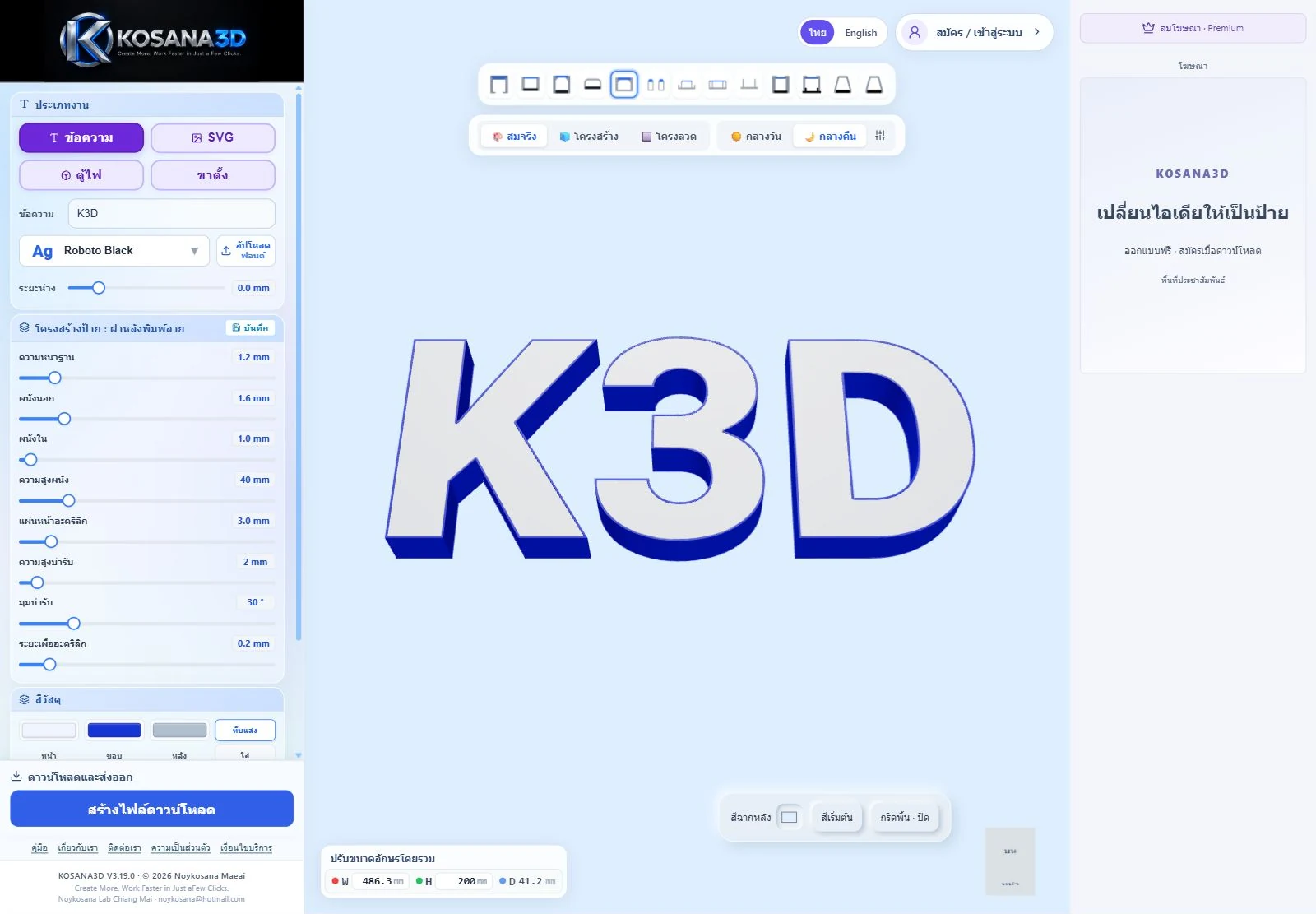 Start here
Type K3D, choose a construction profile, set the size and inspect the preview.
 Bring your artwork
Use outlined text and clean vector shapes. Check holes and scale after import.
 Choose your files
Find the export that matches your job, and check it in your production software.
Keep your work
Know what stays in this browser and what to keep before moving to another device.
When something looks wrong
Check fonts, small details, units and missing download options.
Before you start
You can start designing without signing in. Sign in or create an account when prompted to download. Free members can download letter STL/DXF files and Lightbox / Sign stand PNG images. HTML previews and the combined letter ZIP require Premium access.
An eligible account can receive a one-time 10-day trial when it first uses a Premium feature and the service confirms access. Check the expiry date in My account. The trial does not charge you automatically when it ends. See the Premium terms.
Yes. Under Units, select cm, mm or in before entering dimensions. Text / SVG, Lightbox and Sign stand support these display and input units. Manufacturing exports remain in millimetres, so check the dimensions again in your slicer or cutting software.
No. Your latest work and uploaded fonts are stored in the browser on the original device. Signing in does not sync them to another computer. Read how local saving works before switching devices or clearing browser data.